Install Booked Solid on Windows (getting past the "Windows protected your PC" warning)
Last updated July 17, 2026
Installing Booked Solid on Windows takes about a minute: run the installer, click past one blue Windows warning, and sign in. The warning looks alarming, but it is expected - this article shows you the exact two clicks that get you through it.
Step 1: Run the installer
- Locate the Booked Solid installer you downloaded. It is a file ending in .exe, usually in your Downloads folder.
- Double-click it to start the installation.
Why you see "Windows protected your PC"
When you run the installer, Windows may show a blue screen that says "Windows protected your PC". This comes from Microsoft SmartScreen, a filter that flags apps it has not seen downloaded many times before. Booked Solid is a newer app, so it has not yet built up that download reputation with Microsoft. The warning does not mean anything is wrong with the file - it just means Windows does not recognize it yet.
Getting past the warning: More info, then Run anyway
- On the blue screen, click More info. It is a small link right under the warning text, and it is easy to miss - if you only see a "Don't run" button, the More info link is just above it.
- A Run anyway button appears. Click it.
- The installer continues normally. Follow any remaining prompts until it finishes and Booked Solid opens.
If the download itself is blocked (before you can even run it)
Sometimes the block happens one step earlier: your browser refuses to save the installer at all, saying something like "BookedSolid-pc.exe is not commonly downloaded and may be dangerous." This is the same reputation check as above, applied to the download. In recent Windows updates Microsoft made this harder to override, so here is exactly how to get the file:
- In your browser's Downloads bar or list, find the blocked file. Click the three dots (or right-click it) next to it and choose Keep (Edge may say Keep anyway, then Show more > Keep anyway).
- If Microsoft Edge will not let you keep it no matter what, use a different browser. Google Chrome or Firefox are usually more permissive: open booked.kivimedia.co/download in Chrome or Firefox and download it there.
- Always grab a fresh copy from booked.kivimedia.co/download rather than an old link - the page always serves the newest build for your computer.
Once the file is saved, run it and use More info > Run anyway from the section above. If you have turned Windows Defender or your firewall fully off while fighting this, you can turn them back on afterward - they do not need to stay off for Booked Solid to run. If it still will not download after trying another browser, submit a ticket with a screenshot of the exact message and we will get you a build that goes through.
First launch: sign in or activate
The first time Booked Solid opens, you will see the account screen:
- First time here? Click Enter your license code, then paste the code from your license email (it looks like BS-XXXXX-XXXXX-XXXXX), enter your email, and pick a username and password.
- Already set up? Just sign in with your username and password.
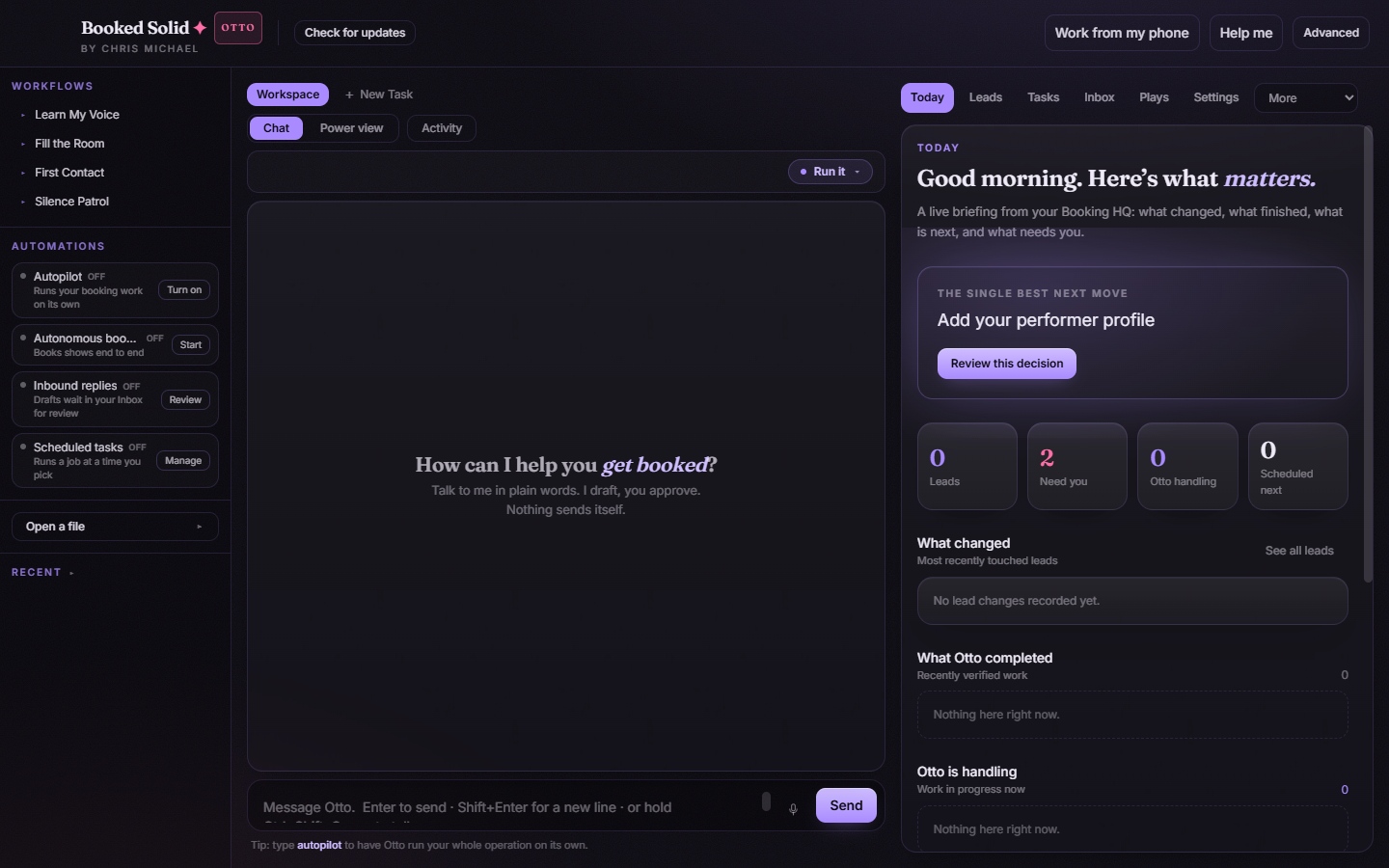
Once you are in, the app looks like this:
What happens after installation
You will not need to repeat any of this for updates. Booked Solid checks for new versions automatically every time it launches and downloads them quietly in the background - when one is ready, a small Update ready badge appears in the top bar and you restart whenever it suits you. See "How updates work" in this folder for the details.
Still stuck? Submit a ticket from this help center and we'll take it from there.